
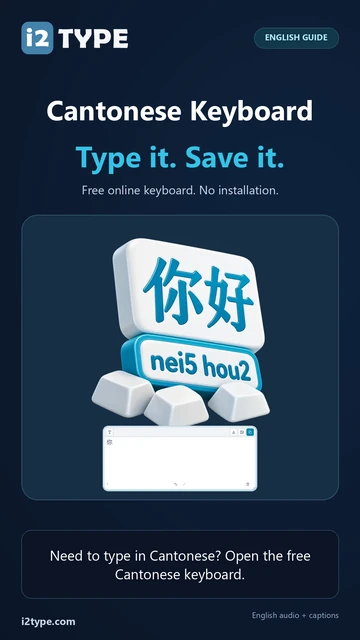
Try this keyboard: Cantonese Keyboard
Separate unfinished code from finished text
Open the Cantonese keyboard, save any existing draft you need, and clear the main editor. Clear Input code as well. The smaller field holds the code being looked up; the large editor holds only the Chinese text or direct text already inserted.
Leave Caps, Shift, and Alt Gr off. The ordinary letter and number keys are needed for this example. Shift switches to direct mapped entry, so an active Shift control can change where the text goes instead of continuing the intended Cantonese code.
Include the final digit in nei5
Enter n, e, i, and 5 in that order so Input code reads nei5. Here 5 belongs to the code; do not treat it as a candidate-selection command. Candidates may change while you type, so finish the complete code before looking for 你.
Read the available results rather than selecting the first one automatically. If necessary, use the page arrows or Show full candidates for more room. The dictionary loads in parts when needed; an initial lookup may take longer than repeating a code whose data is already available.
Choose 你 and check where it appears
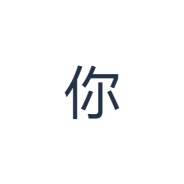
Click the candidate 你. It should appear in the main editor, and Input code should clear. Leave only this character in the editor for the worked image. Selecting a candidate is the step that turns a lookup into finished text.
If you choose the wrong character, use Undo or select and replace the inserted text, then repeat the code. Candidate order is not a meaning check. For a longer message, review each chosen character in context instead of assuming every match for a code says what you intend.
Save the Chinese result with an explicit text style
Open Text style and choose Arial at 28 px with Automatic color. Switch bold, italic, underline, and strikethrough off, and select Left to right. This formats all editor text. Your browser can use a fallback font for Chinese, so inspect the displayed glyph rather than relying only on the font menu name.
Choose Save image to download a PNG, then open it and compare its text with the editor. The image centers the text on a white background. Font appearance depends on fonts available on your device; a missing glyph can use a fallback. For text you can revise later, Save Word (.docx) creates an editable document instead. Both downloads include the whole editor.
i2type-cantonese.pngi2type-cantonese.docx
Tips for this layout
Explore phrases after the single-character example
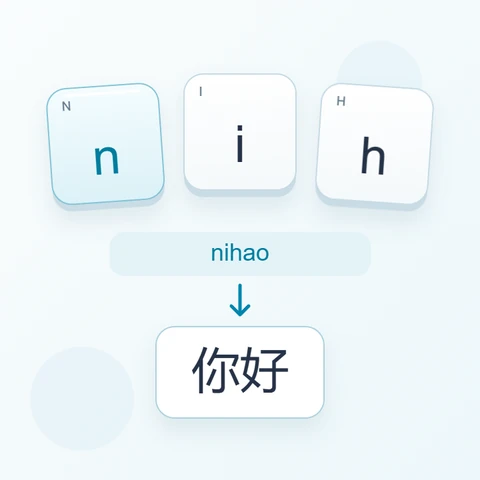
The current dictionary also offers 你好 for nei5hou2. Try that code separately after saving the worked example, and check the complete phrase before selecting it. A longer code can narrow the choices but still requires review.
Keep tone digits available while composing
Number keys remain available for input-code digits. With the caret at the end of the code, Alt+1 through Alt+5 can select visible candidates; Space selects the first available candidate. Direct clicks avoid confusing a tone digit with a selection shortcut.
Common questions
Does this keyboard listen to my Cantonese pronunciation?
No. It matches typed codes against dictionary entries. There is no microphone-based pronunciation score or tone grading in this keyboard. Check the code and candidate text yourself before inserting it.
Why are there matches before I finish typing nei5?
A shorter code can match longer entries. Hints can show code characters still to come. Continue entering the intended code, then inspect the resulting candidates instead of accepting a partial match too early.
Can I save the result for later editing?
Yes. Save Word (.docx) creates an editable document with the editor text and selected styling. Copy produces plain text. Save image produces a centered PNG on white, which preserves the appearance but does not contain directly editable text.
Continue with a code you know
Start with nei5 → 你, then apply the same enter, inspect, and choose sequence to your own text. Save an editable copy when you expect further revisions.