
Try this keyboard: Pinyin Keyboard
Start with an empty editor and input code
Open the Pinyin keyboard. Save any existing browser draft before using the trash button to clear the editor for this exercise. Use Clear input code if an unfinished spelling remains in the separate code field. Clearing that field does not remove Chinese text already committed to the editor.
Keep Shift, Caps and Alt Gr off for ordinary code entry. Decide where the result should appear by placing the editor caret first. A selected passage can be replaced when a candidate is inserted, so begin with the empty editor for a predictable sample.
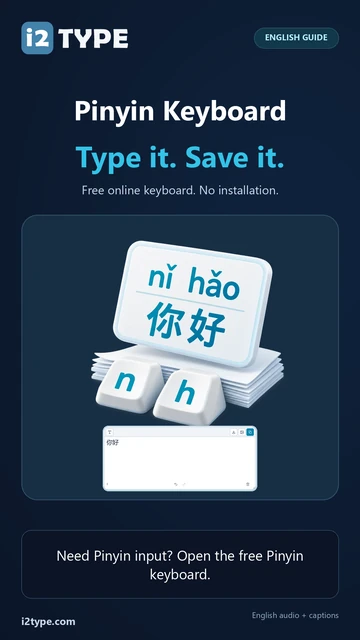
Build the Pinyin code nihao
Use the N, I, H, A and O positions in that order, or enter nihao in the Input code field. Do not add spaces between the letters for this example. The code field holds the spelling while matching Chinese candidates appear separately.
Look for 你好 in the candidates. Dictionary sections load as needed, so allow a moment for results if required. A visible code is not yet the finished Chinese text, and typing the spelling alone does not guarantee that the desired candidate has been inserted.
Select the Chinese candidate and check the editor
Click the candidate 你好. Confirm that the main editor now contains exactly 你好 for the export sample. If a different choice was inserted, use Undo and try again after inspecting the code and candidate. Review the actual characters rather than assuming every match has the same meaning.
Candidate arrows move through further pages, and Show full candidates helps inspect longer choices. Space selects the first displayed candidate when the code caret is at the end; Alt plus a displayed candidate number selects that choice. For this tutorial, clicking the named result avoids relying on its position.
Save the exercise as a PNG image
Open Text style from the font icon. Use Arial at 28 px, Automatic color, and Left to right direction. Turn bold, italic, underline and strikethrough off. These settings apply to the whole editor. A font changes appearance, not the stored characters; your device may use a fallback font for unsupported shapes. Choose Done to close the style dialog.
Choose Save image to save the complete exercise as a PNG, with centered lines and dark text on a white background. Open the file and compare it with the sample. For an editable alternative, choose Save Word (.docx) to create a real .docx, or use Copy text for plain text. These actions use all the editor text even when only part is selected.
i2type-pinyin.pngi2type-pinyin.docx
Tips for this layout
Keep the sample unambiguous
Export only after 你好 appears in the main editor. An unfinished nihao code in the separate field is not the document content used by the download.
Choose, then proofread
A spelling can have several matches. The input method offers candidates; it does not translate an English sentence or determine the intended wording for you.
Common questions
Why is nihao visible but no Chinese text has been added?
The input code and the committed editor text are separate. Choose the 你好 candidate to insert the Chinese result.
Can I type ü in a Pinyin code?
The lookup accepts ü, v or u: for that spelling. This does not select a Chinese character automatically; review the available candidates.
Does the image download include the candidate list?
No. It renders the complete main editor text with its chosen style. Commit and review the intended candidate before downloading.
Try the nihao-to-你好 workflow
Enter the code, choose the exact candidate, and check the committed editor text before making your PNG.