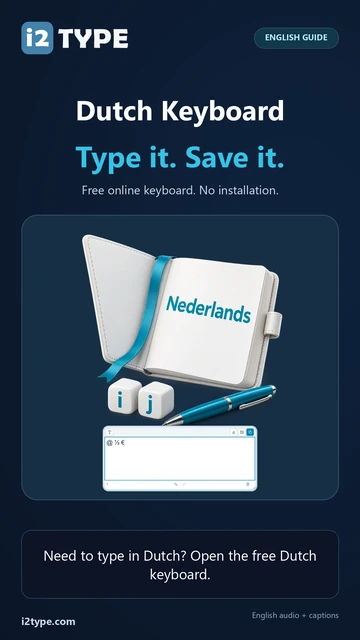
The letter rows are QWERTY, but symbols differ from English.
See letters and punctuation
Backquote inserts @ directly, slash inserts a hyphen, and minus inserts a slash. Use the labels to choose punctuation.
Letter sequences are entered character by character. Typing i followed by j keeps two separate editable letters.
Try these key positions
Physical position
Mapped character
`
@
Alt Gr + 5
½
Alt Gr + E
€
Explore extra symbols
Alt Gr provides fractions, quotation marks, and €.
Find alternate characters
Alt Gr with 4 gives ¼, 5 gives ½, and 6 gives ¾. E gives €, while Z and X give « and ».
Shift provides capitals and changed punctuation. The ¨ and ´ positions insert literal marks rather than waiting for a vowel.
Edit at the cursor and undo changes
Insert characters where you need them, replace selected text, and undo or redo edits without starting again.
How selection and undo work
Click in the text editor to choose an insertion point, or select text you want to replace. The on-screen keys insert at that position. You can also paste text and use your usual selection, navigation and editing shortcuts.
Undo and Redo beneath the editor restore text changes during the current page session, including text removed with Clear text. They do not undo font styling. The saved draft keeps your text when the page reloads, but it does not keep the undo history.
On touch devices, the on-screen typing keys avoid requesting the phone keyboard. Tap directly inside the text field when you want to use the device keyboard instead.
Set the style and text direction
Choose a font, size, color and text direction in Text style. One consistent style applies to the whole editor and its downloads.
Explore the formatting controls
Open Text style using the font icon above the editor. Choose a font family and a size from 12 to 120 px, then turn bold, italic, underline or strikethrough on or off. These settings affect all your text, even when only part of it is selected.
Choose a text color or use Automatic to follow the editor appearance. The direction control switches between Left to right and Right to left for your writing. Direction changes text flow; it does not translate the text or change the selected keyboard layout.
Your browser remembers formatting separately for each keyboard when local storage is available. Reset style restores the default font, size and colors while keeping your chosen direction. A font must be available on the device to display exactly as selected; the browser or Word may substitute another font.
Copy text or save Word and image files
Copy plain text, download an editable Word document, or save a centered PNG image with your chosen formatting.
Choose the right output format
Copy text copies the entire editor as plain text. Save Word (.docx) creates a genuine Word document with editable text, your selected font name and size, color, style and text direction. Both downloads include all editor text, even when a smaller selection is highlighted.
Save image draws the text as a PNG, using the font available in your browser and the size and styling you selected. Lines are centered on a white background. The resulting picture preserves the appearance, but its text is no longer directly editable or selectable.
For long passages, Word is usually more practical than a single image. Image export wraps lines and has size limits; if the text will not fit, save it as Word or reduce the text first. File creation happens in your browser, and downloads contain the text present when you click the button.
Keep a browser draft and search when ready
Continue your text as you switch keyboards in the same tab. Open an external search only when you choose a provider and press Open.
Understand drafts and external search
When browser storage is available, the editor saves your draft on this device and restores it after a reload. Your text also follows you between keyboard pages in the same tab. A new tab may begin with the latest saved draft and then keep its own independent copy.
A browser draft is not an account or cloud backup. Copy or download important work before clearing site data or using a different device. Clear text empties the current draft; it does not remove text already copied, downloaded or held in another tab.
Under Search your text, select Google, Bing, YouTube, Wikipedia or Share on X, then press Open. The entire editor text is sent to that destination in a URL. Choosing X opens a posting composer; you decide whether to publish on that service.
Your text and downloads
Ways to enter text
On-screen keys, a physical keyboard, native text input and pasted plain text. No file upload is required.
Available outputs
Plain text through Copy, an editable Word document (.docx), or a PNG image.
Formatting applies to all your text. Copy, Word and image downloads include the complete editor, even when part of it is selected.
Long text may exceed the limits for one image or Word file. Image export reports an error if the text will not fit; it does not silently remove the excess text.
Typing, editing and file creation run in your browser. Drafts use browser storage when available. Live pages may load traffic-statistics services; external search sends your text to the provider you choose. Privacy Policy