
Try this keyboard: Cangjie Keyboard
Start with an empty editor and code field
Open the Cangjie keyboard and save any draft you need before clearing the main editor. Also clear Input code, the smaller field above the keys. It holds an unfinished code, while the main editor holds text you have already chosen.
Keep Caps, Shift, and Alt Gr off for this example. On the normal layer, the letter keys compose a code. Shift changes the workflow to direct mapped Latin entry, so leaving it enabled can send text to the editor instead of building the intended Cangjie lookup.
Type a and inspect the candidate list
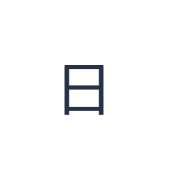
Click a at physical A or type that position into Input code. Wait for the candidates to appear and look for 日. A code is a lookup request, not a guarantee that the first result is the one you intend; read the candidate before accepting it.
If the visible row does not contain the result you want, use the page arrows or Show full candidates to inspect more choices. You can also extend or correct a code before committing it. Dictionary files load in parts as needed, so a first lookup may wait for its required data.
Commit 日 and check the main editor
Click the 日 candidate. The main editor should now contain 日 and Input code should clear. This is the text that will be copied or downloaded; the unfinished Latin code is not a substitute for accepting a Chinese result.
For this worked example, leave only 日 in the editor. If you selected another candidate, Undo can restore the preceding text state during the current page session; then enter a again and choose the intended result. A character already inserted can also be selected and replaced like other editor text.
Save the chosen character as an image or editable text
Open Text style above the editor. Choose Arial, set 28 px, select Automatic color, and switch bold, italic, underline, and strikethrough off. Set direction to Left to right. The chosen font may use a device fallback for Chinese glyphs; inspect the displayed character before saving.
Choose Save image to download a PNG, then open it and compare its text with the editor. The image centers the text on a white background. Font appearance depends on fonts available on your device; a missing glyph can use a fallback. For text you can revise later, Save Word (.docx) creates an editable document instead. Both downloads include the whole editor.
i2type-cangjie.pngi2type-cangjie.docx
Tips for this layout
Choose deliberately, even with short codes
The dictionary also includes b for 月 and d for 木. Treat these as separate later exercises. A short code can offer several results, so check the actual candidate rather than assuming a position always means the same character.
Use shortcuts after learning the visible selection
With the caret at the end of Input code, Space accepts the first available candidate. Keys 1–5 choose the corresponding visible candidate in Cangjie. Clicking the character is clearer while learning because it makes the selection explicit.
Common questions
Does Cangjie infer a character when I do not know its code?
No. The keyboard looks up the code you enter in its dictionary. It does not infer an unknown code from an English meaning or a drawing. Missing data or a failed dictionary download can also leave a code without the expected result.
Why did a Latin letter appear directly in my text?
Check whether Shift is active. On this board it switches from code composition to direct mapped Latin entry. Turn it off to resume Cangjie lookup; the preserved Shift mapping should not be treated as a normal uppercase Latin layer.
Will the downloaded file still contain editable Chinese text?
A PNG is a picture of the editor contents. Save Word (.docx) instead when you need editable Chinese text, or use Copy for plain text. Both downloads include the whole main editor, with no selection-only export.
Try another Cangjie code
Complete the a → 日 example first, then use the same code-and-candidate process for your own text. Review each chosen character before saving.