Try this keyboard: Zhuyin Keyboard
Prepare the editor and Zhuyin symbol field
Open the Zhuyin keyboard and save any existing draft before clearing the main editor with the trash button. Use Clear input code to remove unfinished symbols from the separate code field. This resets the current input without deleting Chinese text already committed elsewhere in the editor.
Keep Learning mode checked and leave Shift, Caps and Alt Gr off. Learning mode limits incompatible symbol choices as you build a syllable. It helps with the available key sequence; it does not check a Chinese sentence or decide which matching character you intend.
Build the symbol sequence with Q, J and 3
Choose Q for ㄆ, then J for ㄨ, then the 3 position for ˇ. Do not add spaces between these symbols. The code field should show ㄆㄨˇ, and matching Chinese candidates appear when the tone-marked input is complete.
Here 3 is a tone key, not an instruction to choose the third candidate. Other tone positions include 6 for ˊ, 4 for ˋ and 7 for ˙. Space completes a first-tone syllable; this sample uses the explicit third-tone mark instead.
Select 普 from the candidate list
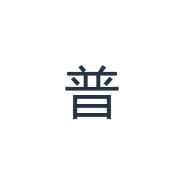
Click the candidate 普 and confirm that the main editor contains exactly that character. The sample PNG is made from the editor, not from the separate ㄆㄨˇ code field. If you select the wrong result, use Undo and rebuild the code before choosing again.
The same code can offer more than one character, so inspect the candidate rather than accepting a result only because it appears first. Use the candidate arrows for further pages or Show full candidates to inspect longer choices. Alt plus a displayed candidate number is another selection method when the code caret is at the end.
Save the exercise as a PNG image
Open Text style from the font icon. Use Arial at 28 px, Automatic color, and Left to right direction. Turn bold, italic, underline and strikethrough off. These settings apply to the whole editor. A font changes appearance, not the stored characters; your device may use a fallback font for unsupported shapes. Choose Done to close the style dialog.
Choose Save image to save the complete exercise as a PNG, with centered lines and dark text on a white background. Open the file and compare it with the sample. For an editable alternative, choose Save Word (.docx) to create a real .docx, or use Copy text for plain text. These actions use all the editor text even when only part is selected.
i2type-zhuyin.pngi2type-zhuyin.docx
Tips for this layout
Clear the correct field
Clear input code removes an unfinished syllable. The editor trash button clears committed text. Use the control that matches the part of the workflow you want to restart.
Use Learning mode as a layout aid
Its restrictions guide compatible symbol entry, not sentence meaning or personal vocabulary. Turn it off only when you intentionally want entry without those ordering restrictions.
Common questions
Why are some keys unavailable during the syllable?
With Learning mode checked, incompatible choices are limited for the current symbol sequence. The available keys update as you enter or clear the code.
Does Space choose 普 in this example?
Use the displayed 普 candidate. In Zhuyin, Space completes a first-tone syllable; this sample requires the third-tone mark from 3.
Will saving the image include ㄆㄨˇ automatically?
No. The download uses the main editor. This exercise commits 普, so that Chinese character is the text in the saved image.
Try the ㄆㄨˇ-to-普 workflow
Build the tone-marked syllable, choose the intended Chinese character, and review the editor before exporting.