
Try this keyboard: Katakana Keyboard
Prepare a separate practice line
Open the Katakana keyboard. If a browser draft is already present, save it before using the trash button to start this exercise. Put the caret in the main editor and make sure Shift, Caps and Alt Gr are off. This gives the sample a predictable starting point.
Use this test before preparing a label or importing text into a form that expects a particular kana width. The retained layout is mainly halfwidth Katakana. It does not turn Roman spellings into kana or convert kana into Kanji, so start with the desired characters already in mind.
Enter the three-character exercise
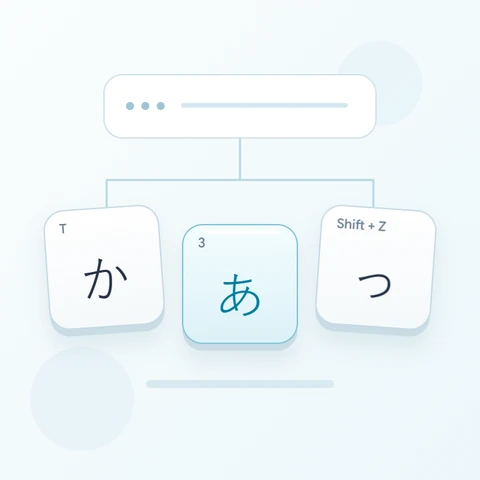
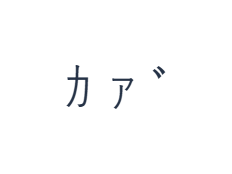
Use these positions in order: T for カ; then Shift + 3 for ァ; then [ for ゙. Add one Space between each output. When using on-screen modifiers, switch them off before moving to a different layer. The resulting editor text is カ ァ ゙. It is a character exercise, not a word or a translation.
The middle character demonstrates the Shift layer: the 3 position normally gives ア, but Shift changes it to ァ. The final ゙ is inserted separately. Keeping spaces in this test makes those three outputs easy to compare without implying that they form a Japanese word.
Check the result before reusing it
Inspect the sample at a readable zoom. Do not judge width solely by how narrow a font makes it look: changing the font leaves the stored characters unchanged. If your destination requires fullwidth Katakana, create that text with an appropriate Japanese input method and paste it here.
Try selecting just the small kana and re-entering it, then use Undo to restore the previous text. This checks editing at a known position. Leave the original spaced exercise in the editor before downloading so that your saved file can be compared with the input sequence.
Save the exercise as a PNG image
Open Text style from the font icon. Use Arial at 28 px, Automatic color, and Left to right direction. Turn bold, italic, underline and strikethrough off. These settings apply to the whole editor. A font changes appearance, not the stored characters; your device may use a fallback font for unsupported shapes. Choose Done to close the style dialog.
Choose Save image to save the complete exercise as a PNG, with centered lines and dark text on a white background. Open the file and compare it with the sample. For an editable alternative, choose Save Word (.docx) to create a real .docx, or use Copy text for plain text. These actions use all the editor text even when only part is selected.
i2type-katakana.pngi2type-katakana.docx
Tips for this layout
Keep mark tests separate
A separate sound mark may sit differently beside a kana in another font. The spaced example makes its existence visible; it is not a recommendation for writing normal Japanese with spaces between every character.
Choose the right conversion tool
Use this page for direct character entry. Use your device Japanese input method when the task requires Roman spelling, Kanji conversion or a fullwidth result.
Common questions
Will changing the font make this output fullwidth?
No. A font changes rendering, not the stored halfwidth characters. Supply the required fullwidth text from another input source when that distinction matters.
Why does Shift change the 3 key into a small kana?
Each layer has explicit mappings. Here the base output is ア and the Shift output is ァ. Read the large kana label after switching layers.
Can I continue editing the downloaded version?
Choose Word for editable text. A PNG preserves the rendered appearance as an image and does not provide editable kana characters.
Try the Katakana exercise
Use the three-character exercise to check width, small kana and marks before working on a longer Japanese passage.