
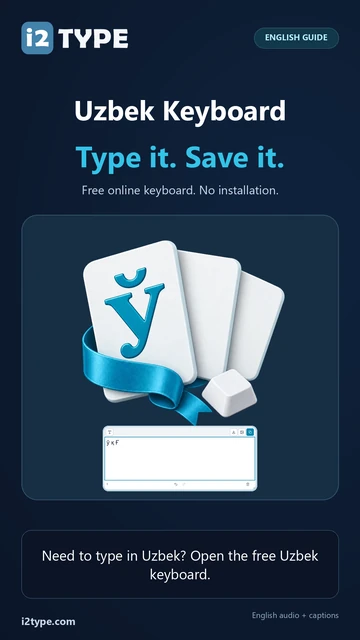
Try this keyboard: Uzbek Keyboard
Prepare a separate practice line
Open the Uzbek keyboard. If a browser draft is already present, save it before using the trash button to start this exercise. Put the caret in the main editor and make sure Shift, Caps and Alt Gr are off. This gives the sample a predictable starting point.
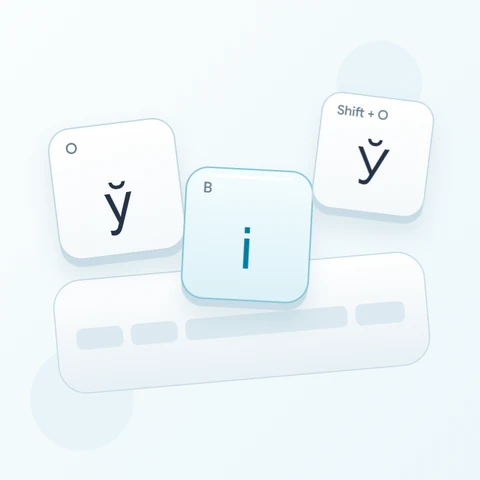
Find O for ў, S for қ and minus for ғ. The last position looks like punctuation on many physical keyboards, but its base mapping here is a letter. The exercise uses Shift with minus for Ғ and keeps the three outputs separated.
Enter the three-character exercise
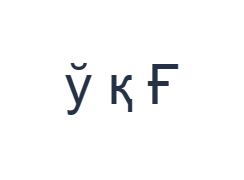
Use these positions in order: O for ў; then S for қ; then Shift + - for Ғ. Add one Space between each output. When using on-screen modifiers, switch them off before moving to a different layer. The resulting editor text is ў қ Ғ. It is a character exercise, not a word or a translation.
Turn Shift on only for the final Ғ, then turn it off. If a different output appears, inspect the visible layer before trying again. The small Latin hints identify physical positions; they do not describe a Roman spelling that the editor converts into Uzbek.
Check the result before reusing it
Compare the three letters with the example and confirm the final capital. For actual text, check names and spelling against a reviewed source. A familiar-looking glyph can be a different stored character, so do not replace a letter merely because another one looks close.
If the recipient requires Latin-script Uzbek, use an appropriate input source and paste the desired text. Selecting this keyboard or changing a font does not transliterate existing contents. Copy and downloads preserve the script and character sequence already in the editor.
Save the exercise as a PNG image
Open Text style from the font icon. Use Arial at 28 px, Automatic color, and Left to right direction. Turn bold, italic, underline and strikethrough off. These settings apply to the whole editor. A font changes appearance, not the stored characters; your device may use a fallback font for unsupported shapes. Choose Done to close the style dialog.
Choose Save image to save the complete exercise as a PNG, with centered lines and dark text on a white background. Open the file and compare it with the sample. For an editable alternative, choose Save Word (.docx) to create a real .docx, or use Copy text for plain text. These actions use all the editor text even when only part is selected.
i2type-uzbek.pngi2type-uzbek.docx
Tips for this layout
Confirm the required script
Decide whether Cyrillic or Latin text is needed before preparing a long document. This page’s visible direct mappings are Cyrillic.
Check upper-row punctuation
Minus and equals provide ғ and ҳ on the base layer. Inspect the available alternatives when the task actually needs punctuation.
Common questions
Where are қ and ғ?
S inserts қ and minus inserts ғ on the base layer. Shift supplies the displayed uppercase forms.
Does this convert Latin Uzbek spelling?
No. It inserts the mapped Cyrillic characters. Provide the intended text yourself or paste it from another input source.
Will Word retain the chosen Cyrillic letters?
The .docx contains editable text preserving the entered characters. Open it and review rendering because another device may use a different font.
Try the Uzbek exercise
Use the three-letter test, then prepare reviewed text in the script required by your reader or destination.