
Try this keyboard: Spanish Keyboard
Prepare a separate practice line
Open the Spanish keyboard. If a browser draft is already present, save it before using the trash button to start this exercise. Put the caret in the main editor and make sure Shift, Caps and Alt Gr are off. This gives the sample a predictable starting point.
Find semicolon for ñ and equals for ¡. Shift changes equals to ¿, so the same physical position provides both opening marks. The sample keeps them separate; it is not a Spanish phrase or a recommendation for arranging punctuation in a sentence.
Enter the three-character exercise
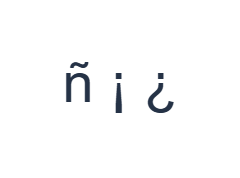
Use these positions in order: ; for ñ; then = for ¡; then Shift + = for ¿. Add one Space between each output. When using on-screen modifiers, switch them off before moving to a different layer. The resulting editor text is ñ ¡ ¿. It is a character exercise, not a word or a translation.
Use the base equals output before switching Shift on for the final mark. Turn Shift off afterward. If you are later writing a real question or exclamation, supply the appropriate text and closing punctuation separately rather than treating the three-item test as a template.
Check the result before reusing it
Compare both opening marks carefully. If the wrong one appears, replace it after checking Shift. A small punctuation error can survive copying because the editor transfers the exact character, not the sentence you intended to write.
Check accented vowels in your actual words. The quote position inserts ´, and Shift changes it to ¨; those are literal marks rather than a dead-key workflow. The page does not turn ´ followed by a into á. Paste completed accented letters where necessary and review the passage.
Save the exercise as a PNG image
Open Text style from the font icon. Use Arial at 28 px, Automatic color, and Left to right direction. Turn bold, italic, underline and strikethrough off. These settings apply to the whole editor. A font changes appearance, not the stored characters; your device may use a fallback font for unsupported shapes. Choose Done to close the style dialog.
Choose Save image to save the complete exercise as a PNG, with centered lines and dark text on a white background. Open the file and compare it with the sample. For an editable alternative, choose Save Word (.docx) to create a real .docx, or use Copy text for plain text. These actions use all the editor text even when only part is selected.
i2type-spanish.pngi2type-spanish.docx
Tips for this layout
Review names exactly
Compare accents and ñ with a reviewed source for a name. A similar-looking unaccented spelling may not be the intended text.
Keep an editable version
Use Copy or Word before creating an image when you expect later corrections. An image keeps appearance but makes text changes less convenient.
Common questions
Where is uppercase Ñ?
Use Shift with semicolon. The base output at that position is ñ.
How are ¡ and ¿ entered?
Equals supplies ¡ on the base layer and ¿ with Shift. Check the current label before pressing it.
Does the accent key create á automatically?
No. The accent is inserted separately. Paste a completed accented vowel when the layout does not provide the needed character directly.
Try the Spanish exercise
Learn the direct ñ and punctuation positions, then review every accent in the real Spanish text before sharing it.