
Try this keyboard: Assamese Keyboard
Start with the displayed Assamese layout
Find ক at K and ৱ at B on the normal layer. Turn on Alt Gr to see ৰ at the 0 position, then return to the normal layer before starting. The top-row position is a letter on that alternate layer, not the digit printed on a physical keycap.
Open the Assamese keyboard and save any existing draft you want to keep. Clear the editor for this exercise, then turn off Caps, Shift, and Alt Gr. Clicking the on-screen characters avoids relying on the printed labels of your physical keyboard.
Enter ক ৱ ৰ one example at a time
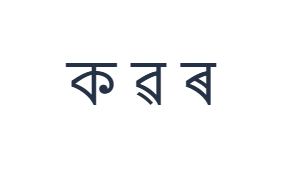
First, use the normal layer and click ক at the K position. Next, use the normal layer and click ৱ at the B position. Finally, use the Alt Gr layer and click ৰ at the 0 position. Insert one Space between the examples. The finished practice row is ক ৱ ৰ. These separated characters are an exercise, not a word or a translation.
For each example, enable only its stated modifier combination and check that the large key label matches the intended character. On-screen Shift and Alt Gr stay active until you toggle them off. Return to the normal layer after the final example; do not leave an extra modifier selected.
Review the characters before formatting
Compare the editor with ক ৱ ৰ. If one item differs, select that item and click its correct key again. Undo and Redo can recover text edits during this page session. Keep one space between the examples so each character remains easy to inspect.
Check that the final item is ৰ and that the middle one remains ৱ. These are deliberate selections from the current map. The Assamese and Bengali pages currently share their preserved mapping, so changing between those pages will not repair a missing or unexpected character.
Set a clear style and download the practice row
Open Text style using the font button above the editor. Explicitly choose Arial, set the size to 28 px, choose Automatic color, and turn bold, italic, underline, and strikethrough off. Set direction to Left to right. These settings apply to the complete editor, even when a smaller passage is selected.
Choose Save image to download a PNG, then open it and compare its text with the editor. The image centers the text on a white background. Font appearance depends on fonts available on your device; a missing glyph can use a fallback. For text you can revise later, Save Word (.docx) creates an editable document instead. Both downloads include the whole editor.
i2type-assamese.pngi2type-assamese.docx
Tips for this layout
The current map is shared
The preserved Assamese and Bengali boards use the same mapping. Paste or use native input for missing characters.
Find alternate letters
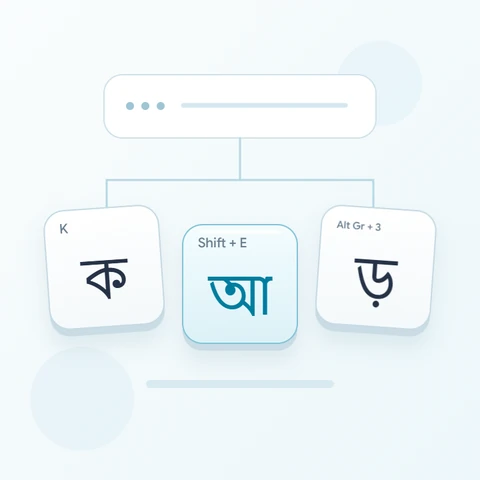
Shift with E gives আ, whereas E alone gives া. The normal number row contains ১ through ০. Alt Gr with 0 inserts ৰ. Other alternate positions can be empty; inspect their labels before clicking.
Common questions
Why do the Assamese and Bengali boards look alike?
They currently use the same preserved layout data. The page names do not imply separate complete mappings. Check the character shown on each key and use paste or native input when the required character is unavailable.
Should I space every character in a real Assamese word?
No. Spaces in this exercise make the three sample letters easy to compare. For your own text, enter the intended character sequence and review letters and signs together; their appearance can depend on surrounding text and the available font.
Will Copy keep the style shown in my image?
Copy sends the entire editor as plain text, so the receiving app supplies its appearance. Use PNG for a fixed visual result or Word for editable text with the selected font, size, color, and direction.
Try your own Assamese text
Repeat the example, then replace it with the text you need. Review any unfamiliar characters before copying or downloading the finished version.